

310 字
1 分钟
Hexo 主题背景美化
首页背景图渐进式加载
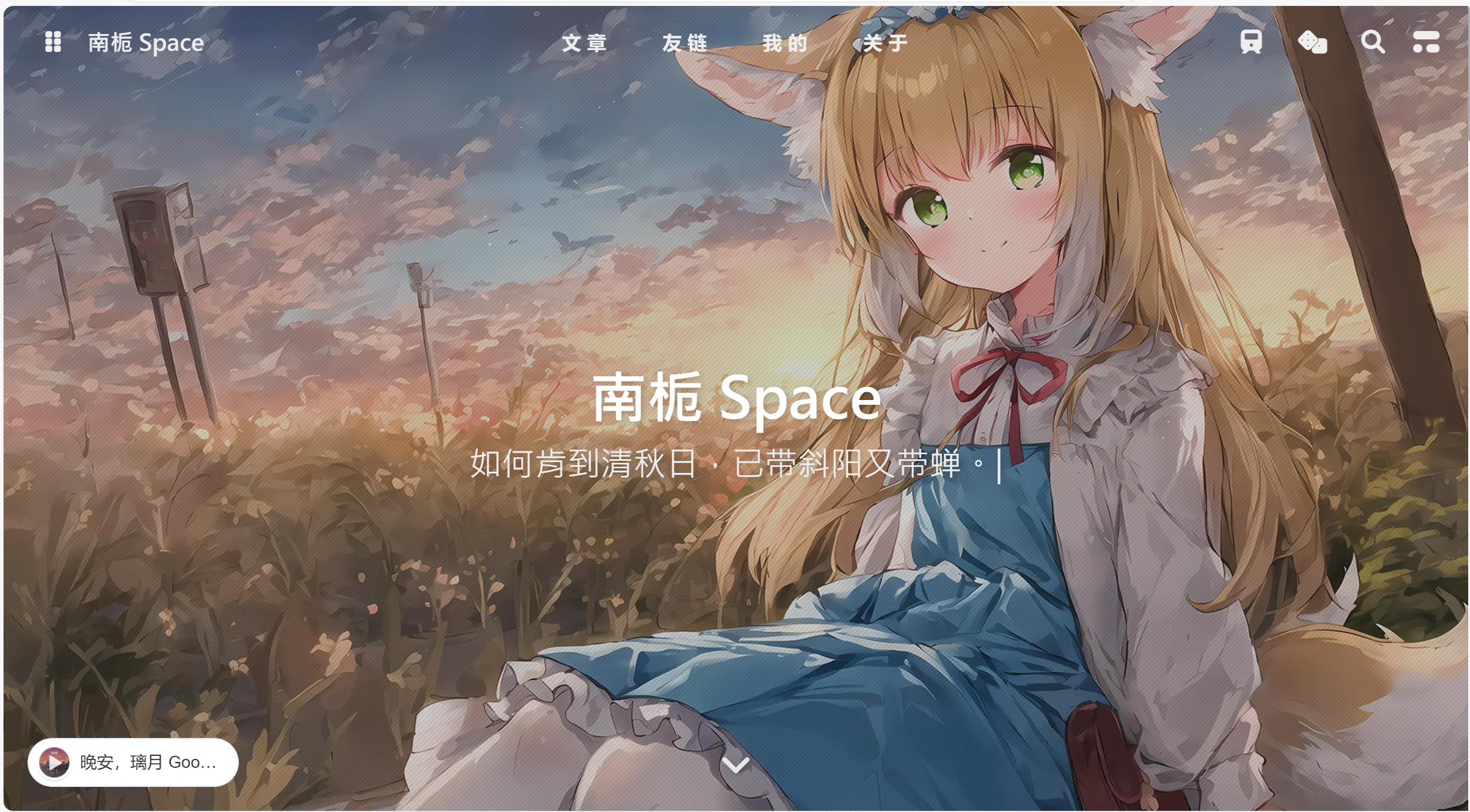
此渐进式教程此教程参考于铭心石刻博客,并加以修改
使用的主题 anzhiyu 为例(butterfly 通用),为首页顶部图配置渐进式加载。
- 新建文件
source/js/imgloaded.js新增以下内容 - 你可以修改对应的图片链接
// 首页头图加载优化/** * @description 实现medium的渐进加载背景的效果 */
if (!window.ProgressiveLoad) { // 定义ProgressiveLoad类 class ProgressiveLoad { constructor(smallSrc, largeSrc) { this.smallSrc = smallSrc; this.largeSrc = largeSrc; this.initScrollListener(), this.initTpl(); } // 这里的1是滚动全程渐变 改为0.3就是前30%渐变后固定前30%产生的渐变效果 initScrollListener() { window.addEventListener("scroll", (()=>{ var e = Math.min(window.scrollY / window.innerHeight, 1); this.container.style.setProperty("--process", e) } )) } /** * @description 生成ui模板 */ initTpl() { this.container = document.createElement('div'); this.smallStage = document.createElement('div'); this.largeStage = document.createElement('div'); this.video = document.createElement('div'); this.smallImg = new Image(); this.largeImg = new Image(); this.container.className = 'pl-container'; this.container.style.setProperty("--process", 0), this.smallStage.className = 'pl-img pl-blur'; this.largeStage.className = 'pl-img'; this.video.className = 'pl-video'; this.container.appendChild(this.smallStage); this.container.appendChild(this.largeStage); this.container.appendChild(this.video); this.smallImg.onload = this._onSmallLoaded.bind(this); this.largeImg.onload = this._onLargeLoaded.bind(this); }
/** * @description 加载背景 */ progressiveLoad() { this.smallImg.src = this.smallSrc; this.largeImg.src = this.largeSrc; } /** * @description 大图加载完成 */ _onLargeLoaded() { this.largeStage.classList.add('pl-visible'); this.largeStage.style.backgroundImage = `url('${this.largeSrc}')`; }
/** * @description 小图加载完成 */ _onSmallLoaded() { this.smallStage.classList.add('pl-visible'); this.smallStage.style.backgroundImage = `url('${this.smallSrc}')`; } }
const executeLoad = (config, target) => { console.log('执行渐进背景替换'); const isMobile = window.matchMedia('(max-width: 767px)').matches; const loader = new ProgressiveLoad( isMobile ? config.mobileSmallSrc : config.smallSrc, isMobile ? config.mobileLargeSrc : config.largeSrc ); // 和背景图颜色保持一致,防止高斯模糊后差异较大 if (target.children[0]) { target.insertBefore(loader.container, target.children[0]); } loader.progressiveLoad(); };
const config = { smallSrc: 'https://t.mwm.moe/moez', // 小图链接 尽可能配置小于100k的图片 largeSrc: 'https://t.mwm.moe/moez', // 大图链接 最终显示的图片 mobileSmallSrc: 'https://t.mwm.moe/moez', // 手机端小图链接 尽可能配置小于100k的图片 mobileLargeSrc: 'https://t.mwm.moe/moez', // 手机端大图链接 最终显示的图片 enableRoutes: ['/'], };
function initProgressiveLoad(config) { // 每次加载前先清除已有的元素 const container = document.querySelector('.pl-container'); if (container) { container.remove(); } const target = document.getElementById('page-header'); if (target && target.classList.contains('full_page')) { executeLoad(config, target); } }
function onPJAXComplete(config) { const target = document.getElementById('page-header'); if (target && target.classList.contains('full_page')) { initProgressiveLoad(config); } }
document.addEventListener("DOMContentLoaded", function() { initProgressiveLoad(config); });
document.addEventListener("pjax:complete", function() { onPJAXComplete(config); });
}- 新建文件
source/css/imgloaded.css新增以下内容
/* 首页头图加载 */body[data-type=anzhiyu] #nav,body[data-type=anzhiyu] #scroll-down,body[data-type=anzhiyu] #site-info { -webkit-animation: scale 2.2s cubic-bezier(.6, .1, .25, 1) .5s 1 backwards; animation: scale 2.2s cubic-bezier(.6, .1, .25, 1) .5s 1 backwards}
@media screen and (max-width: 768px) { .pl-container { position: relative !important }}
@media screen and (min-width: 768px) {
#page-header.full_page, .pl-container { height: 100vh }
#page-header.full_page.expand-to-full, .pl-container.expand-to-full { height: 50vh !important }
.pl-container { will-change: opacity, transform, filter; opacity: calc(1 - var(--process) * 1) !important; transform: scale(calc(1 + var(--process) * .1)); filter: blur(calc(var(--process) * 10px)); }}
.pl-container { width: 100%; height: 100%; position: fixed; z-index: -2; overflow: hidden; will-change: transform; /* 添加性能优化 */ animation: blur-to-clear 2.5s cubic-bezier(.6, .25, .25, 1) 0s 1 backwards, scale 2.2s cubic-bezier(.6, .1, .25, 1) .5s 1 backwards;}
.pl-img { width: 100%; height: 100%; position: absolute; background-position: center; background-size: cover; background-repeat: no-repeat; opacity: .1; transition: opacity 1s; will-change: transform, opacity}
.pl-video.pl-visible { display: block}
@keyframes blur-to-clear { 0% { filter: blur(50px); opacity: 1; }
100% { filter: blur(0); opacity: 1; }}
@keyframes scale { 0% { transform: scale(1.5) translateZ(0); opacity: 0; }
to { transform: scale(1) translateZ(0); opacity: 1; }}
.pl-video { position: absolute; top: 0; left: 0; width: 100%; height: 100%; object-fit: cover; z-index: 0; background: url(data:image/png;base64,iVBORw0KGgoAAAANSUhEUgAAAAQAAAAECAYAAACp8Z5+AAAABmJLR0QA/wD/AP+gvaeTAAAACXBIWXMAAAsTAAALEwEAmpwYAAAAKUlEQVQImU3IMREAIAgAwJfNkQCEsH8cijjpMf6vnXlQaIiJFx+omEBfmqIEZLe2jzcAAAAASUVORK5CYII=);}
.pl-visible { opacity: 1;}
.pl-blur { /* 小图锯齿多,增加高斯模糊 */ filter: blur(50px);}
/* 去除首页图片背景黑板 */[data-theme='dark'] #web_bg:before, [data-theme='dark'] #footer:before, [data-theme='dark'] #page-header:before{ background-color: transparent;}引入文件- 在
_config.anzhiyu.yml主题配置文件下inject配置项中 head 和 bottom 处添加以下内容:
inject: head: - <link rel="stylesheet" href="/css/imgloaded.css?1">
bottom: - <script async data-pjax src="/js/imgloaded.js?1"></script> # 首页图片渐进式加载背景美化
- 新建文件
source/css/imgloaded.css,我们会在这里添加一些自定义 css - 添加以下内容
渐变背景

预览图
/* 默认背景 */[data-theme=light] #body-wrap { background: linear-gradient(0deg, rgba(247, 149, 51, .1), rgba(243, 112, 85, .1) 15%, rgba(239, 78, 123, .1) 30%, rgba(161, 102, 171, .1) 44%, rgba(80, 115, 184, .1) 58%, rgba(16, 152, 173, .1) 72%, rgba(7, 179, 155, .1) 86%, rgba(109, 186, 130, .1)) !important; }自定义背景
在 url() 的括号里里填入图片链接
[data-theme=light] #body-wrap { background-image: url(https://bu.dusays.com/2023/10/28/653ce9975bdfe.webp); background-position: center; background-repeat: no-repeat; background-size: cover; background-attachment: fixed; } /* 黑夜背景 */ [data-theme=dark] #body-wrap { background-image: url(https://bu.dusays.com/2023/10/28/653ce9975bdfe.webp); background-position: center; background-repeat: no-repeat; background-size: cover; background-attachment: fixed; }引入文件- 在
_config.anzhiyu.yml主题配置文件下inject配置项中 head 和 bottom 处添加以下内容:
inject: head: - <link rel="stylesheet" href="/css/costom.css">作者卡片美化
自定义背景
- 在已有的
custom.css文件中添加以下内容 - 在 url() 的括号里里填入图片链接
/* 侧边栏头像卡片 */#aside-content>.card-widget.card-info::before { background: url(''); border: 0; position: absolute; background-size: 400% 400%; -webkit-animation: Gradient 10s ease infinite; -moz-animation: Gradient 10s ease infinite; animation: Gradient 10s ease infinite !important;}渐进背景
- 在已有的
custom.css文件中添加以下内容 - 在 url() 的括号里里填入图片链接
/* 侧边栏头像框背景色 */[data-theme=dark] #aside-content>.card-widget.card-info::before { overflow: hidden; background-size: contain; position: relative;}
#aside-content>.card-widget.card-info::before { background: linear-gradient(-45deg, #e8d8b9, #eccec5, #a3e9eb, #bdbdf0, #eec1ea);}添加视频背景
- 在
themes\anzhiyu\layout\includes\layout.pug下添加以下内容
div#bg-video video(autoplay muted loop) source(src= url_for('视频url') type='video/mp4')- 在已有的
custom.css文件中添加以下内容
[data-theme=light] #bg-video { position: fixed; top: 0; left: 0; width: 100%; height: 100%; z-index: -1; overflow: hidden; }[data-theme=dark] #bg-video { display: none; } #bg-video video { width: 100%; height: 100%; object-fit: cover; }若出现部署后和本地显示不一致问题,请查看教程
分享
如果这篇文章对你有帮助,欢迎分享给更多人!
部分信息可能已经过时
相关文章 智能推荐
1
解决Hexo博客魔改后显示问题
Technology 解决Hexo博客使用pnpm安装主题后本地与线上显示不一致的排查与修复教程
2
使用Github和Vercel部署Hexo
Technology 从零开始使用GitHub与Vercel部署Hexo博客的完整图文教程,含环境配置与代码推送
3
Shiro部署如此简单?!
Technology 使用1Panel面板一键部署Mix Space(Shiro)个人博客系统的详细图文教程
4
Win11安装安卓子系统WSA
Technology Windows 11安装安卓子系统(WSA)完整教程,含WSATools使用与APK安装方法
5
Realme&ColorOS Root教程
Technology Realme/ColorOS手机完整Root教程,含BootLoader解锁、Magisk安装与隐藏Root权限方法